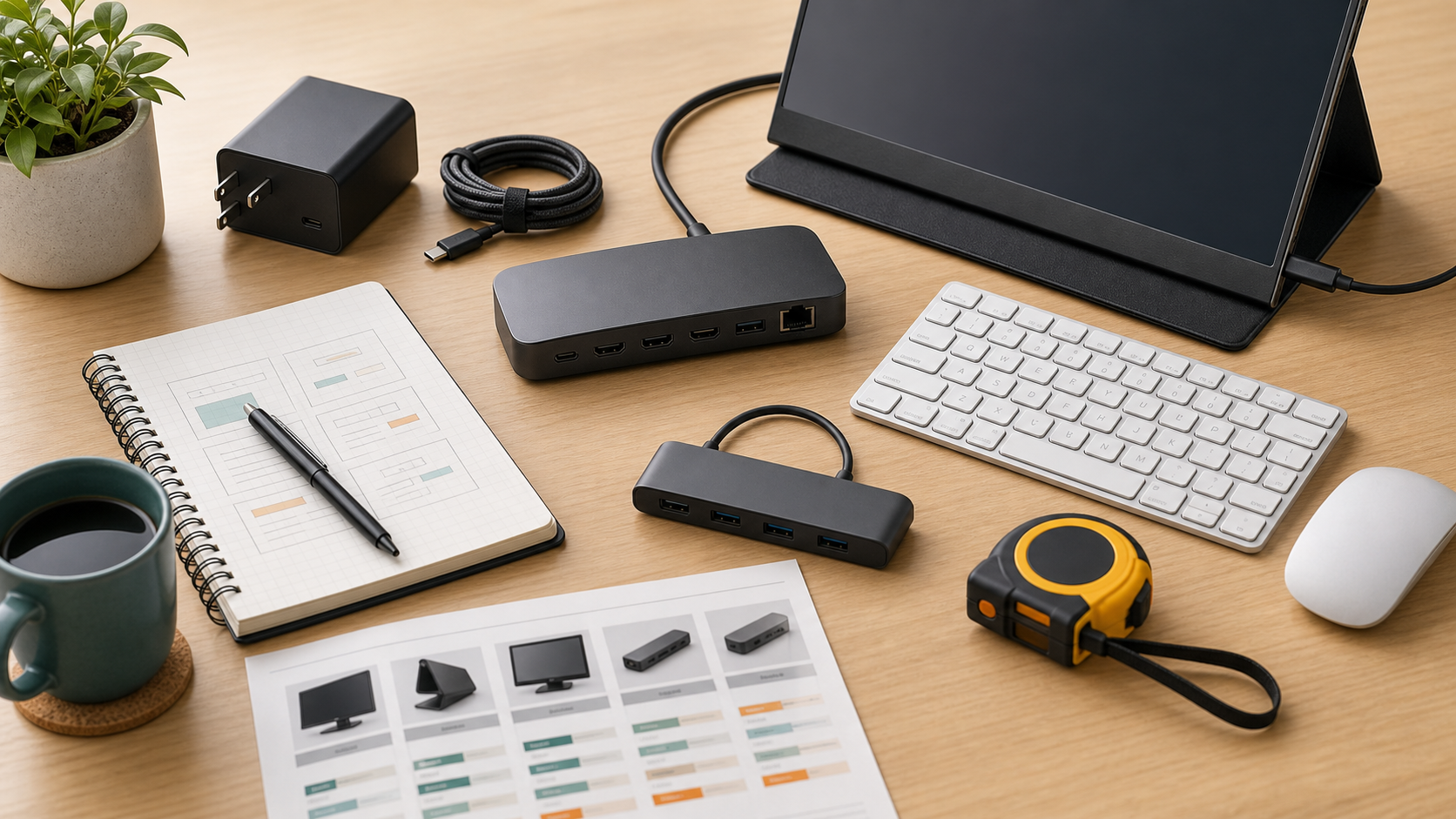
A docking station can simplify a desk, but only when it matches your ports, monitors, power needs, and operating system.
MediaSoar writes for readers who want useful technology decisions without pressure, exaggerated promises, or confusing jargon. This guide focuses on practical signals you can verify before buying, subscribing, or changing your workflow.
Understand the connection type
USB-C, Thunderbolt, HDMI, DisplayPort, and power delivery can look similar in product photos but behave differently in real setups. The laptop manual is the best starting point.
Check the exact monitor resolution and refresh rate you want to run. Some docks support two screens only at lower refresh rates, which matters for design, analysis, or long reading sessions.
Count power and peripherals
A dock should power the laptop and connect common devices without creating a tangle. List your keyboard, mouse, webcam, microphone, storage device, card reader, and Ethernet needs.
Leave one or two spare ports for future devices. Buying a dock that is already full on day one can make the desk messy again within a few months.
Watch heat and reliability
Small docks are convenient for travel, but they may run warm under constant load. Larger desktop docks often manage heat and cables better.
Read support notes for firmware updates and operating system compatibility. A dock is infrastructure; stability matters more than a dramatic product photo.
A quick decision checklist
- Match the dock to your laptop manual.
- Check monitor resolution and refresh limits.
- Confirm power delivery wattage.
- Leave spare ports for future devices.
Bottom line: for buying guides decisions, the strongest choice is usually the one that fits your daily constraints, works with the tools you already use, and remains easy to maintain after the first week.