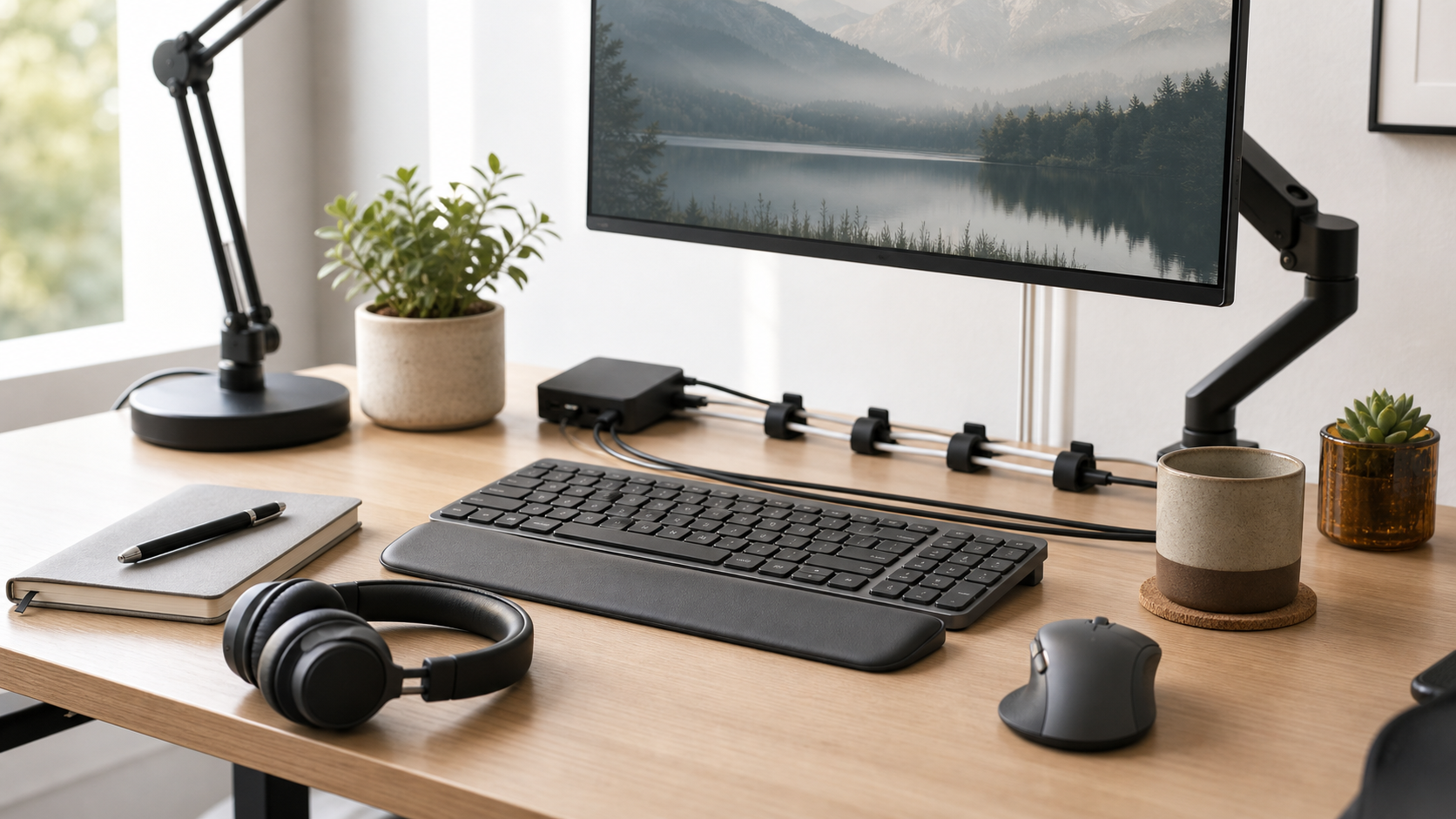
A good monitor setup should reduce friction for the work you do most often: reading, writing, spreadsheets, design, or calls.
MediaSoar writes for readers who want useful technology decisions without pressure, exaggerated promises, or confusing jargon. This guide focuses on practical signals you can verify before buying, subscribing, or changing your workflow.
Choose size by task
A 24-inch monitor can be enough for focused writing or email. A 27-inch or ultrawide screen may help when you compare documents, manage timelines, or keep reference material visible.
Resolution matters because it affects text clarity. For long reading sessions, clear text and comfortable scaling are usually more important than flashy gaming specifications.
Position before upgrading
Place the screen so the main content is centered and the top third is easy to view. The exact height depends on chair, desk, vision, and posture.
An inexpensive monitor arm can sometimes improve a setup more than a new display because it frees desk space and makes adjustment easier.
Plan for calls
If you spend time on video calls, leave room for a webcam near eye level and avoid lighting that comes only from behind. A simple lamp can help more than a complex camera upgrade.
Consider where notes, chat, and shared screens will appear. A setup that looks clean in a photo may feel cramped during real meetings.
A quick decision checklist
- Pick a size based on your main task.
- Prioritize text clarity for reading work.
- Place camera and lighting before important calls.
- Use scaling settings instead of forcing tiny text.
Bottom line: for home office decisions, the strongest choice is usually the one that fits your daily constraints, works with the tools you already use, and remains easy to maintain after the first week.